Less offers a huge selection of Google Fonts, including all fonts available in 400 (regular), 400 italic, and 700 (bold) weights.
These variations cover the most common typographic needs: regular text, italics for emphasis, and bold for strong emphasis.
From this selection, Less lets you choose up to three fonts to style your website’s text. This keeps things simple while still letting you customize your site’s look and keep it running fast.
Navigate to Thesis → Design to get started.
- Want to use a Google Font we don’t have? Visit the Thesis documentation to learn how to add other Google Fonts to Less.
- Want to use a non-Google Font? Visit the Thesis documentation to learn how to add non-Google Fonts to Less.
Selecting your primary font
Font 1 is the main font used for most of your text. It sets the overall look and feel of your site typography and makes sure everything is easy to read.
Font Size offers a selection of six popular web font sizes for your primary font, ranging from 16 to 21 pixels. Your choice here becomes the “Medium” value in Font Size dropdown menus throughout the design options.
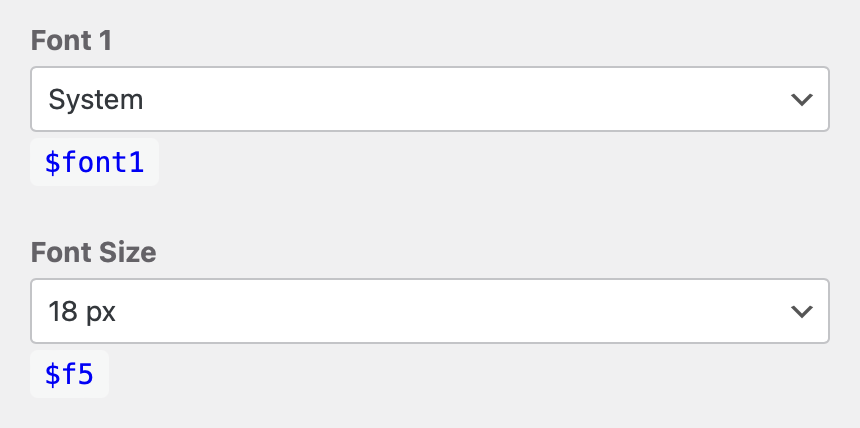
Default Design Options
| Option | Default | Variable |
|---|---|---|
| Font 1 | System | $font1 |
| Font Size | 18 px | $f5 |
Selecting additional fonts
Font 2 and Font 3 are additional fonts that add variety to your typography. Use them for headings and special text. Be aware though, that increasing the number of fonts will slow down your site.
Default Design Options
| Option | Default | Variable |
|---|---|---|
| Font 2 | Empty | $font2 |
| Font 3 | Empty | $font3 |
Using fonts in your design
Once you’ve selected your Primary Font and any additional fonts, you can easily apply them to design different elements of your website.
The Design Dashboard offers options to modify both Font and Font Size for various elements. Empty Font values default to Font 1, while empty Font Size values default to Medium.
- Site Title
- Font Empty
- Font Size 3X-Large
- Tagline
- Font Empty
- Font Size Empty
- Banner
- Font Empty
- Font Size Empty
- Bylines
- Font Empty
- Font Size Empty
- Pagination
- Font Size Empty
- Footer
- Font Size Empty
- Buttons
- Font Empty
- Font Size Empty
- Inputs
- Font Empty
- Menus
- Fonts Empty
- Font Size Medium
- Badges
- Font Empty
- Blockquote
- Font Empty
- Font Size Empty
- Captions
- Font Empty
- Drop Caps
- Font Empty
- Eyebrows
- Font Empty
- Headings
- Font Empty
- Impacts
- Font Empty
Tip: Change the font and font size selections in your Base Options to automatically update fonts and font sizes across all these elements.