A 404 error page is a specific page displayed when a request triggers the HTTP 404 response code, signifying that the requested page doesn’t exist.
Visitors are redirected to the 404 error page if they encounter a broken link or an unavailable page.
Creating a 404 error page
Without a custom 404 page, visitors might encounter a generic browser-generated error, such as “404 Not Found,” which isn’t helpful.
However, a well-designed 404 error page can enhance the visitor’s experience by guiding them back to relevant content or suggesting alternatives.
To get started go to Pages → Add New Page.
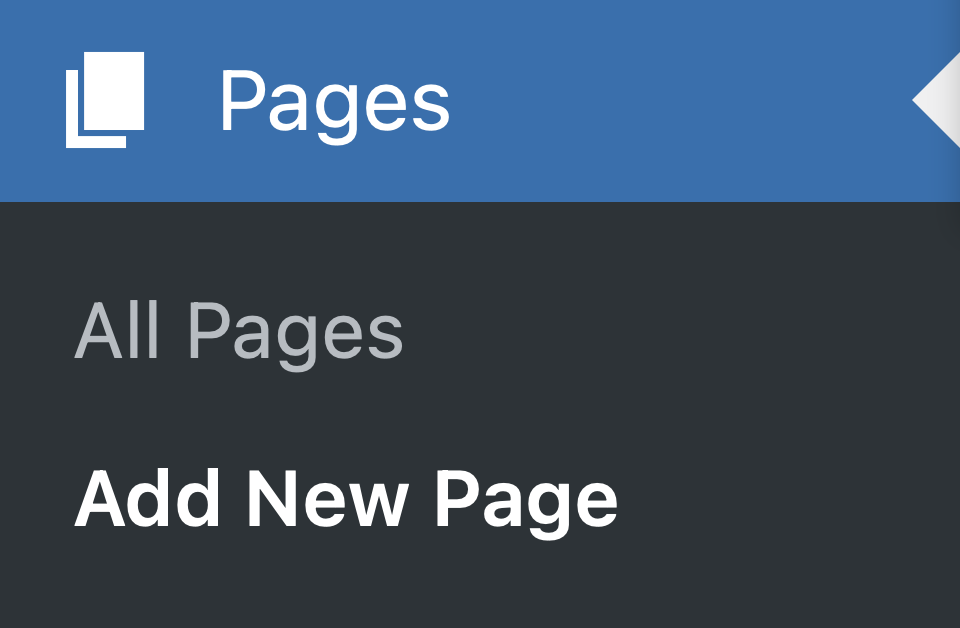
Press Add New Page in the WordPress Admin menu
Once you’re on the Page editing screen, assign a title to your page, like “404 Error”, and use the Content Styles dropdown selector to design your error page to be helpful instead of frustrating!
Publish your page.
Configuring your 404 error page
Once your 404 page is designed, you’ll need to tell Thesis to use that specific page as your custom 404 error page. Go to Thesis → Site → 404 Page.

Press 404 Page in the Thesis Home page or Site Menu
Once you’re on the 404 Page settings page, select the page you just created (“404 Error”) from the dropdown selector.
Save your changes.

Select your 404 Error page from the dropdown selector
Editing your 404 error page
Since your 404 error page operates like any other page, you can locate it in your pages table and edit it just like you would any page.

The 404 Error page in the pages table