If you set a homepage instead of a blog as your front page, you might want to designate a posts page for your blog, if you have one.
Creating a posts page
To get started go to Pages → Add New Page.
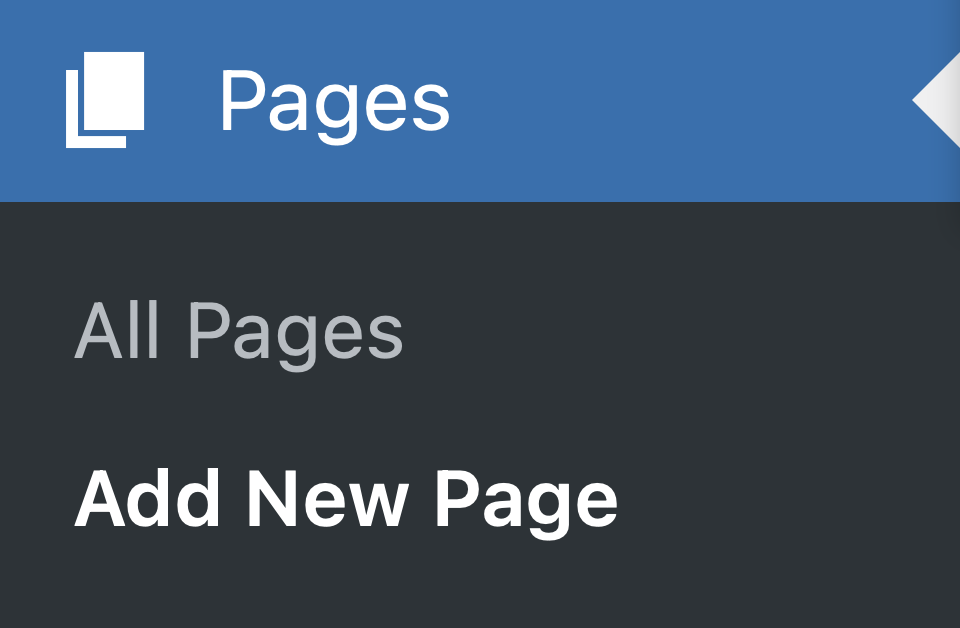
Press Add New Page in the WordPress Admin menu
Once you’re on the Page editing screen, assign a title to your page, like “Blog” or your site’s title.
Publish your page.
Configuring your posts page
Once your posts page is published, you’ll need to set it as a Static Page of your site. Go to Settings → Reading.
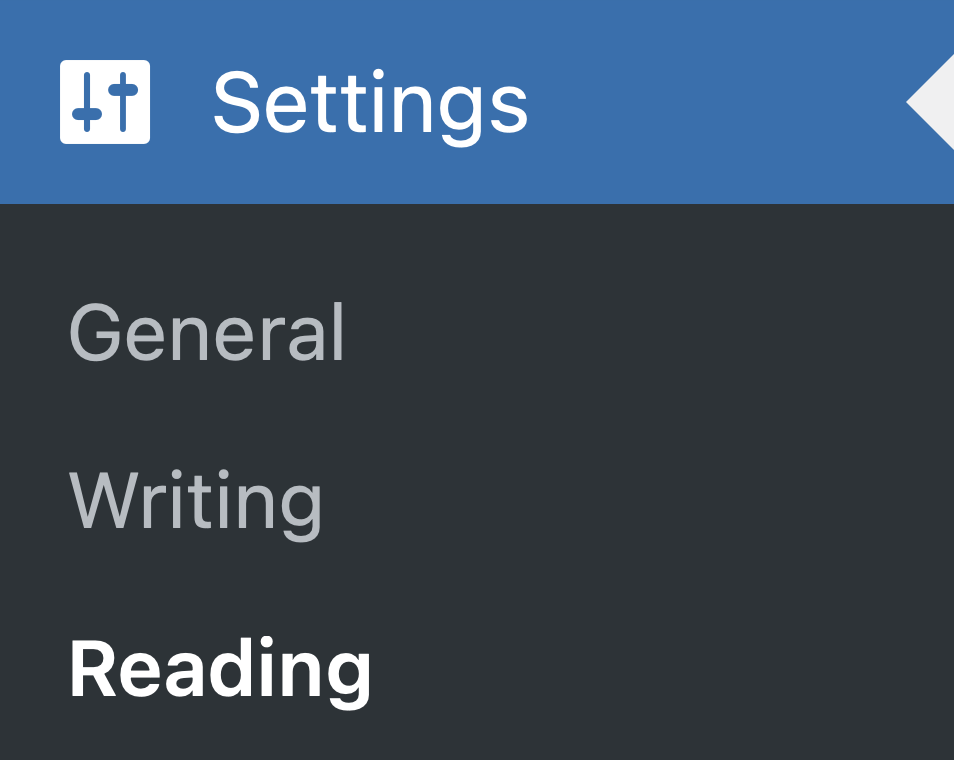
Press Reading in the WordPress Admin menu
Once you’re on the Reading Settings page, select A static page from the options under Your homepage displays. Then select the page you just created (“Blog” or your site’s title) from the dropdown for Posts Page.
Save your changes.
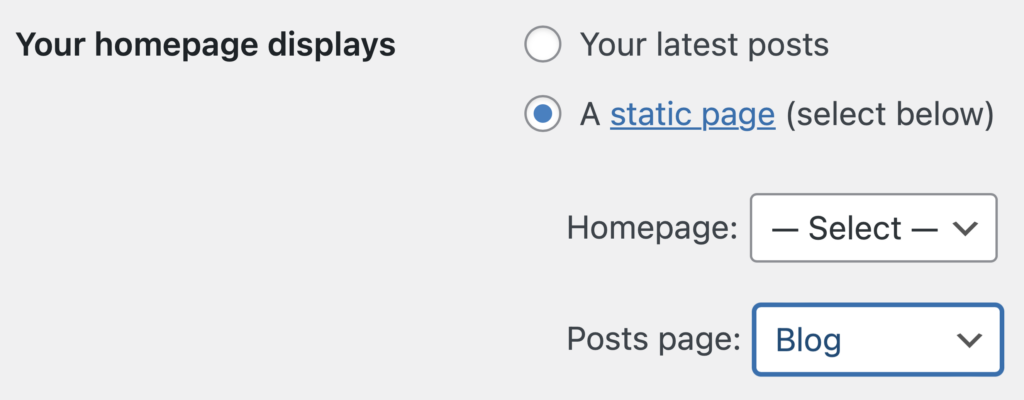
Select your Posts Page from the dropdown selector
Editing your posts page
Your blog page is a unique page that displays your most recent posts. While you can find it in your pages table like any other page, its editing options are limited.
You can only update the page title (which isn’t shown on the front-end) and the permalink. This is due to the fact that this page primarily serves as a placeholder for your post archives.

The Blog page has the Posts Page Post State label
Also, as this page holds a special status, the page table will include a Post State labeled as Posts Page following its title.