Once you install and activate a Box, you’ll be able to update to new versions of that Box as they become available. This step-by-step guide will walk you through the process.
In This Guide
- Recommended Method
- Alternative Method
Updating to a new version of a Box
When a new version of a Box becomes available, you should receive an update nag in your Thesis Home. It will display a general message, “Box update available.”

Press the Box Update Available link to manage your Skin updates
However, if your WordPress installation has already checked for updates within the current 24-hour period, you may not see any update notifications.
Pro Tip: You can force a transient reset by re-saving your Less License Key, which will conduct another update check.
Once you are able to, press the Box Update Available link. You will be automatically brought to the Manage Boxes page in Thesis.
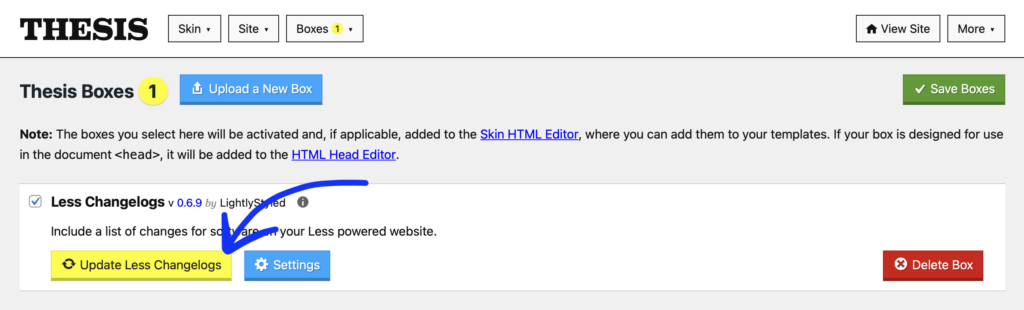
Press the Update Box button to download the latest version of a box
Press the Update Box button to install the updated Box. Thesis will automatically uninstall the older version and install the newest version.
Updating a Box using an FTP client
Pro Tip: This update method is intended for advanced users or those experiencing trouble when updating Boxes using our recommended update method.
The advanced installation involves updating Boxes using an FTP client and uploading the theme files to your server. To get started, download the latest Box file.
Note: After downloading the box.zip file to your computer, you need to unzip it to convert it into a regular folder.
For more information on how to zip and unzip files, check out these guides for Windows and Mac systems.
Once you’ve downloaded the Box file and converted it into a regular folder, connect to your server using your preferred FTP client.
Pro Tip: Always check your website host’s documentation for any specific steps they may give for using an FTP client to manage your website.
- Once connected, go to the
/wp-contentfolder, followed by the/thesisfolder, and finally, enter the/boxesdirectory. - Upload the entire Box folder into the
/boxesdirectory on your server. This will overwrite the existing Box folder. - If your site uses caching, you may need to clear it before any changes are reflected in WordPress.